
BY CITESILO · · 2 MIN READ
How to find a PDF when you cannot remember its filename
A useful PDF often arrives with an unhelpful name: “download”, a reference number or a long sequence of characters. Start with something inside the document, then use its likely location to narrow the candidates.
The first distinction is whether the PDF still exists on your computer. A local search can help locate an available file. It cannot restore a deleted document or fetch a file that was never downloaded.
Build a clue from the contents
Write down two or three unusual words from the document. A project name, heading or distinctive technical term is more useful than “report”. If you remember a quotation, begin with a short part of it. Punctuation, line breaks and extraction errors can make a long exact quotation harder to match.
Suppose you read a transport report about “winter bicycle maintenance”. Search for “bicycle” and “winter” separately if the full phrase produces nothing. These are hypothetical search examples, not claims about a particular result.
Check where the document came from
Look in the browser’s Downloads view if you downloaded it recently. That record may reveal the original filename or source website even if you moved the file later. Also check the application’s recent-document list and the folder for the relevant project.
Use the approximate date to narrow your inspection. A file’s modification date can reflect copying or later editing, so treat it as a clue rather than proof of when you read it.
Search an appropriate local folder
In CiteSilo, add the folder containing likely documents to local file search and allow indexing to finish. Search for the distinctive terms, inspect the returned passage, and open the original PDF to verify the match.
Current indexing supports PDF extraction, but a supported extension does not guarantee usable text. The beta also applies file-size and folder filters. Its current file-size limit is 4 MiB, so a large report can be absent even when its folder is selected.
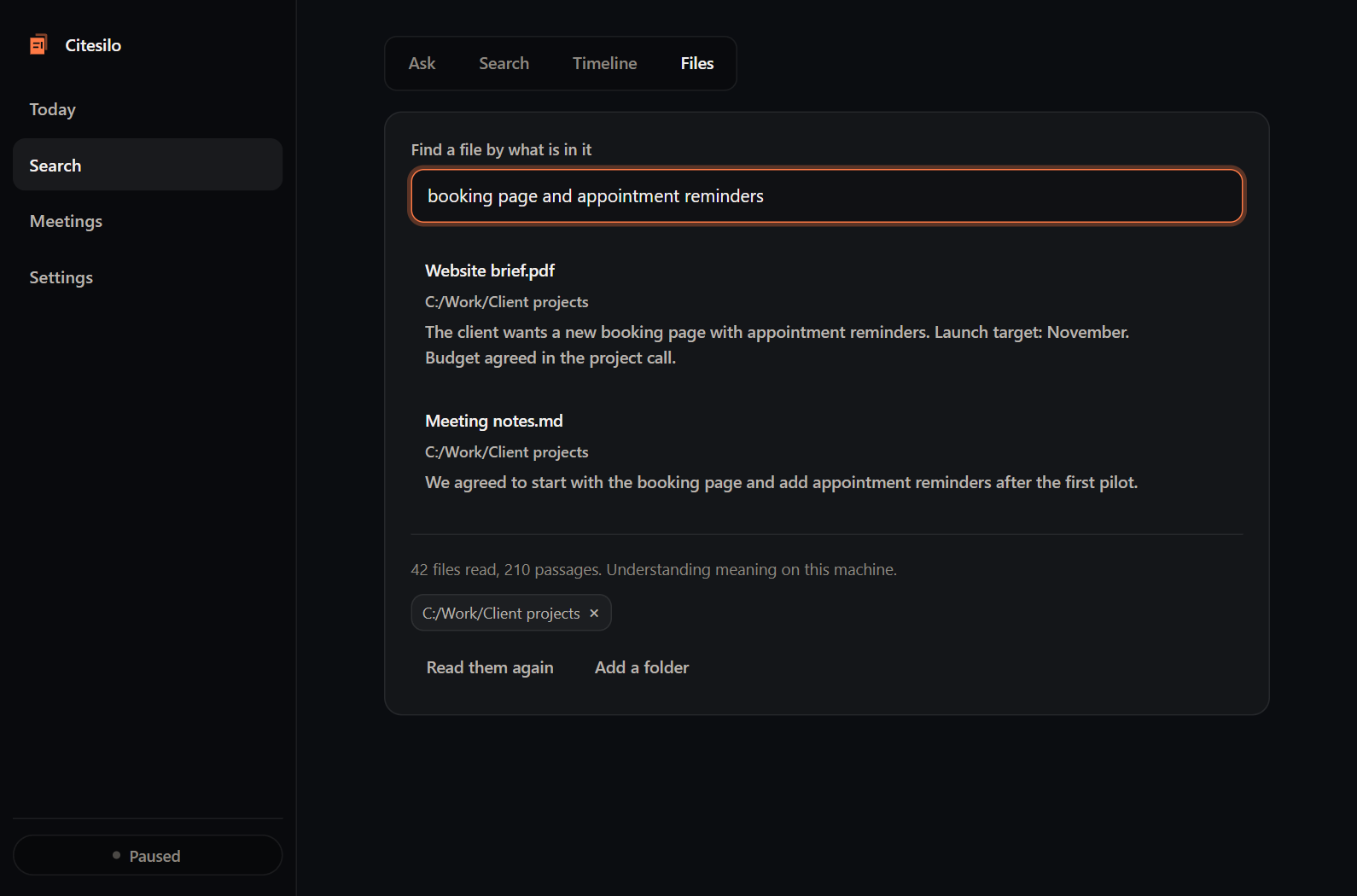
The CiteSilo interface with illustrative document-search data.
If the PDF is a scan
Try selecting a sentence in the PDF viewer. If the page is only an image, ordinary text extraction may have little to search. A separate OCR step may be needed to create a searchable copy; keep the original and check the extracted text for errors.
CiteSilo’s screen-text recognition is a different path. It can provide clues from retained captured screens when the relevant recording was already enabled. It does not mean every scanned PDF in an indexed folder is automatically OCR-processed.
Keep the recovered reference
Once you find the PDF, give it a meaningful filename or add its location to your project notes. Record the page or section you needed so the next search ends at the useful passage.
See how CiteSilo works for the distinction between document search and captured work history.