
SEARCH. REVISIT. PICK UP THE THREAD.
How CiteSilo works
CiteSilo is a desktop app for finding local files, searching captured screen text and reviewing your work history. You choose what to index and capture; the app helps you return to the available sources.
1. Add the folders you want to search
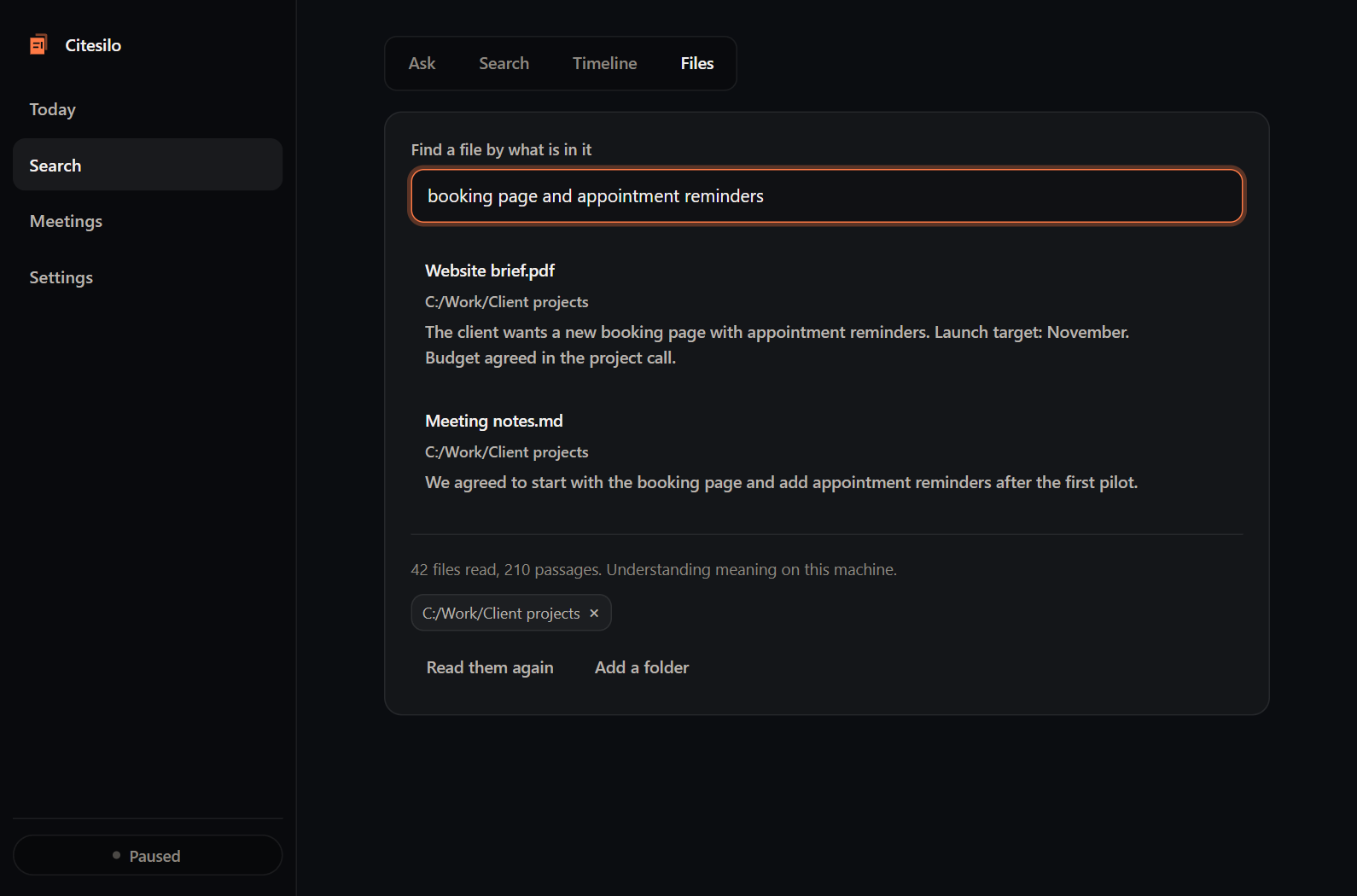
Local file search looks inside supported documents in folders you add. Search with a phrase you remember, a topic or a description of the content. Review the matching passages to decide which document you need.
For example, “booking page with appointment reminders” can be more useful than trying to remember whether a file was called “brief” or “proposal”. A file must be available in an indexed folder for this search to find it.
2. Turn on the capture you want
With activity tracking and the relevant capture options enabled, CiteSilo records a work timeline and can extract text from captured screens. You can revisit a period of work and search that recorded text when you remember a detail but have lost the tab or document.
Review the capture settings first. You can pause capture, exclude apps or title keywords, use titles-only mode and set screenshot retention. Screen rewind and meeting capture have separate controls.
This history starts with what CiteSilo records. It cannot reconstruct screens from before capture was enabled, and excluded or deleted material may be unavailable. It is not a continuous video of everything on your computer.
3. Follow the source behind an answer
Search results and supported answers include references to available source material. Open the relevant passage or retained captured source to check the context yourself.
Local mode provides retrieved evidence and source excerpts without a cloud API key. AI-written interpretations require an optional cloud provider or a separately installed compatible Ollama model. A source reference helps you verify a response; it does not guarantee that every interpretation is correct.
4. Review the day or week you recorded
Daily and weekly reports bring recorded activity together. Local mode can report counts and source excerpts; an optional AI provider can write summaries from selected context. Review the underlying activity before treating a summary as a finished account of your work.
You can group recorded activities into projects and optionally show estimated durations. Recording gaps and private periods affect the picture. These estimates are not verified billable hours or proof that a task was completed.
Getting started with the beta
Join the email list for access details. Signing up saves your email for beta follow-up; it does not create an app account or immediately install the software. CiteSilo does not charge for beta access. External AI provider fees, if you choose a provider, are separate.
Check the Windows and macOS beta notes before choosing a build.