
BY CITESILO · · 3 MIN READ
How to find something you saw on your computer
Start with the kind of thing you remember: a web page, a saved document or a moment inside an app. Browser history, local file search and captured screen history contain different evidence. Choosing the right one makes the search more useful.
Write down the strongest clue
Before opening dozens of tabs, note one distinctive phrase, the likely project and a rough date. “Booking page with appointment reminders” is a stronger clue than “something about a website”. Names, unusual terms and a small piece of quoted text can help narrow the search.
If you remember only the appearance of a page, think about what you were doing before and after viewing it. The surrounding task may suggest a website, document folder or day to investigate.
If it was a web page, check browser history
Open your browser’s History view and search for the website name or a phrase likely to appear in the page title. Browse the relevant date if the phrase does not help. Check the browser profile you used at the time.
A visit record is a route back to a page. It may not contain the passage you read, and the page may have changed. Private browsing, cleared history and another device can leave gaps. Chrome’s own history instructions explain how to open and search its history.
If it was a file, search its content and location
Check the app’s recent-document list and the folders where you normally keep that project. Search using a distinctive keyword. If you downloaded the file, check Downloads as well as the destination where you may have moved it.
Windows offers search from the taskbar and File Explorer; Microsoft documents the available options in finding your files and apps. What a content search can find depends on the file type and indexing settings.
In CiteSilo, add the relevant folder to local file search, then try the words you remember from the document. Read the returned passage and open the source to confirm the match. CiteSilo searches supported content that is available in the folders you choose.
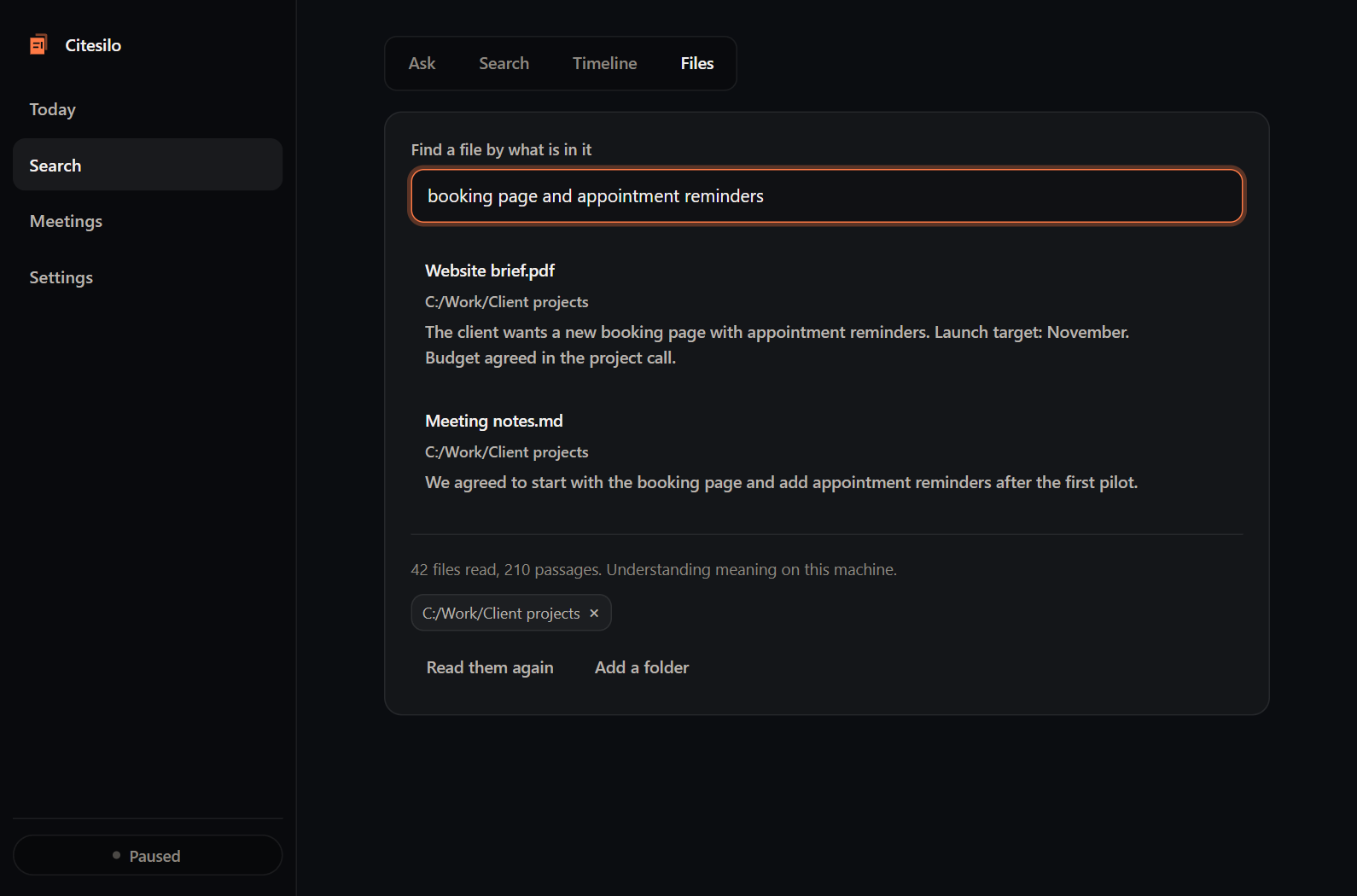
The actual CiteSilo interface with illustrative search data. This example is not a measured retrieval guarantee.
If the clue was on screen, check recorded history
When CiteSilo’s relevant capture options were enabled, extracted screen text and the work timeline can provide another way back. Search for the phrase and inspect retained sources around the likely time. Follow source references rather than relying on an isolated summary.
This works only with available recorded content. Capture may have been off, an app may have been excluded, text extraction may have missed a word, or retention may have removed the source. Installing an app now cannot reconstruct a screen it never captured.
Make the next search easier
Once you find the item, save a stable bookmark or project note with its location and a short explanation of why it mattered. Capture is useful supporting evidence, while a deliberate reference can make recurring work much easier.
For a walkthrough, read how CiteSilo works. Before enabling screen capture, review local storage and capture controls. You can join the free beta list to request access.